 CargoGauge
Operator dashboard, partner portal and driver app
The whole fleet on one map
Every vehicle on an active trip sends its position while it drives, so the map always shows the current situation without anyone having to call the driver.
-
Positions in real time
The driver’s phone sends the position as the vehicle moves, so each marker on the map shows where the vehicle is now.
-
Every past trip, replayable
The route history is saved after each trip, so you can document where a vehicle was and when, even months later.
-
On time, delayed, very delayed
Each trip is colour-coded by status, so you can see on the map which trips need attention.
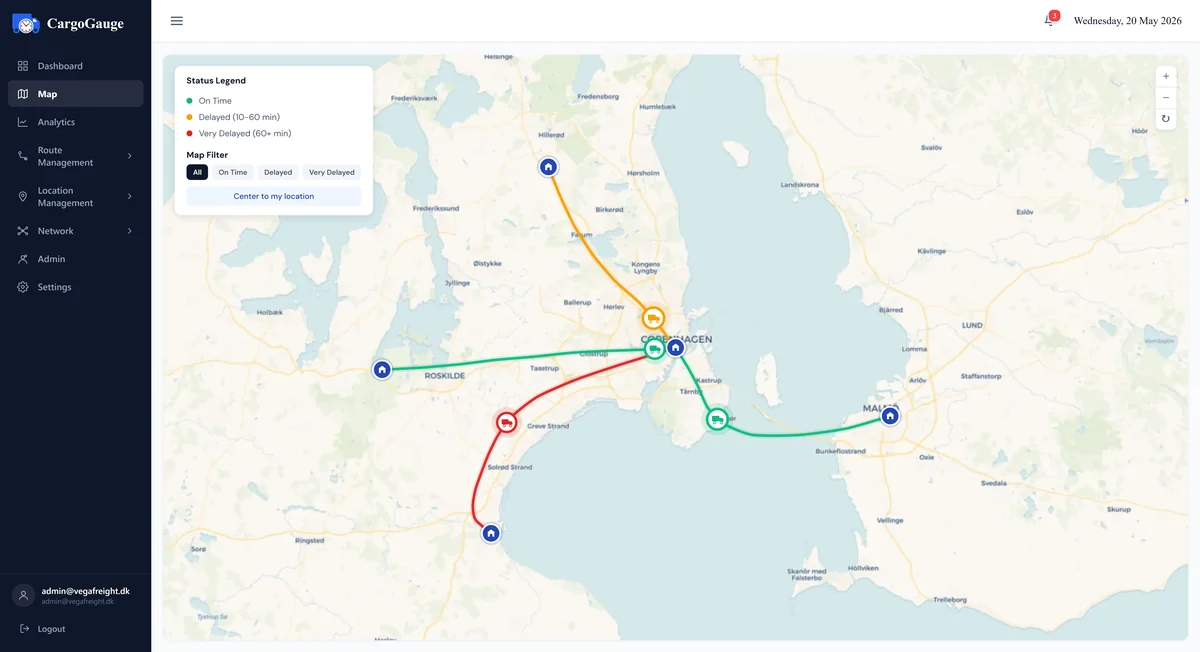
The live map. The vehicles are moving on example routes, not customer data.
Arrival times calculated for trucks
The operator dashboard shows the whole day: which trips are running, which are arriving, and which are delayed. All figures are calculated automatically.
-
Key figures
Active assignments, free gates, trips on time and trips delayed, updated continuously during the day.
-
All arrivals in one overview
Each ETA is calculated for the specific vehicle, including mandatory breaks, daily driving limits and ferry departures.
-
Delays and their causes
In the example, assignment A-4830 is 18 minutes late for gate G-07 due to heavy traffic. The delay and its cause are shown on the same row.
-
On-time rate, live
The split between on-time and delayed trips is updated as vehicles arrive, so you can follow the current day.
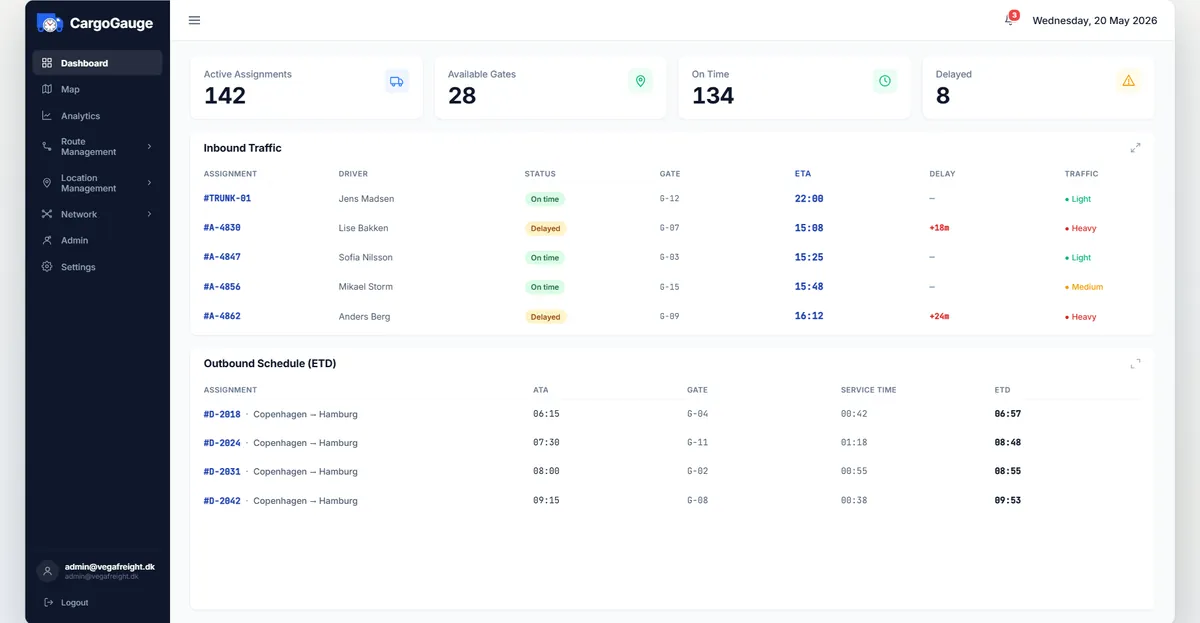
The operator dashboard. Routes, drivers and figures are examples, not customer data.
Subcontractors as part of your fleet
Subcontractors are managed in the platform together with your own fleet: contact details, status and the assignments they hold.
-
Subcontractor register
Every subcontractor with contact details, status and current assignments.
-
Dispatch to your own vehicles or to subcontractors
A trip can be assigned to your own vehicle or to a subcontractor, and is tracked the same way in both cases.
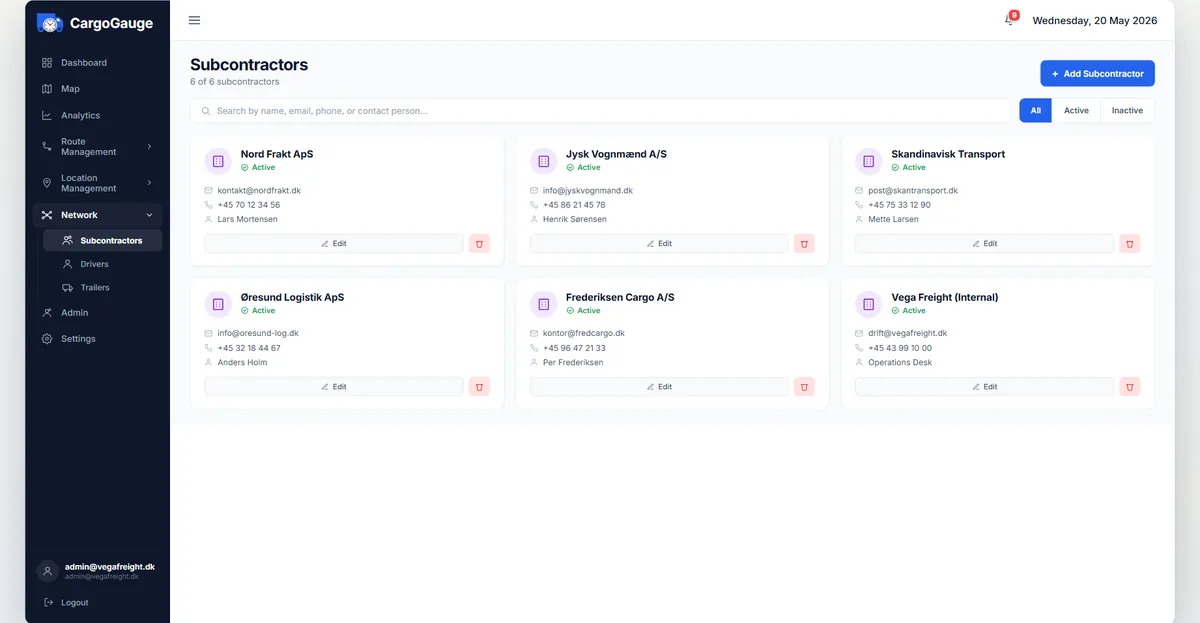
The operator’s subcontractor register. The hauliers shown are examples.
Reporting on completed trips
A focused set of operational figures that show whether delays occur on the road or at the terminal.
-
On-time rate
Measured against the time windows you set for each stop.
-
Stop status
The share of stops that were on time, delayed or heavily delayed.
-
Time per stop
Average time spent loading, unloading and waiting per completed stop.
-
Performance by weekday
On-time performance per weekday, so recurring problems on specific days are visible.
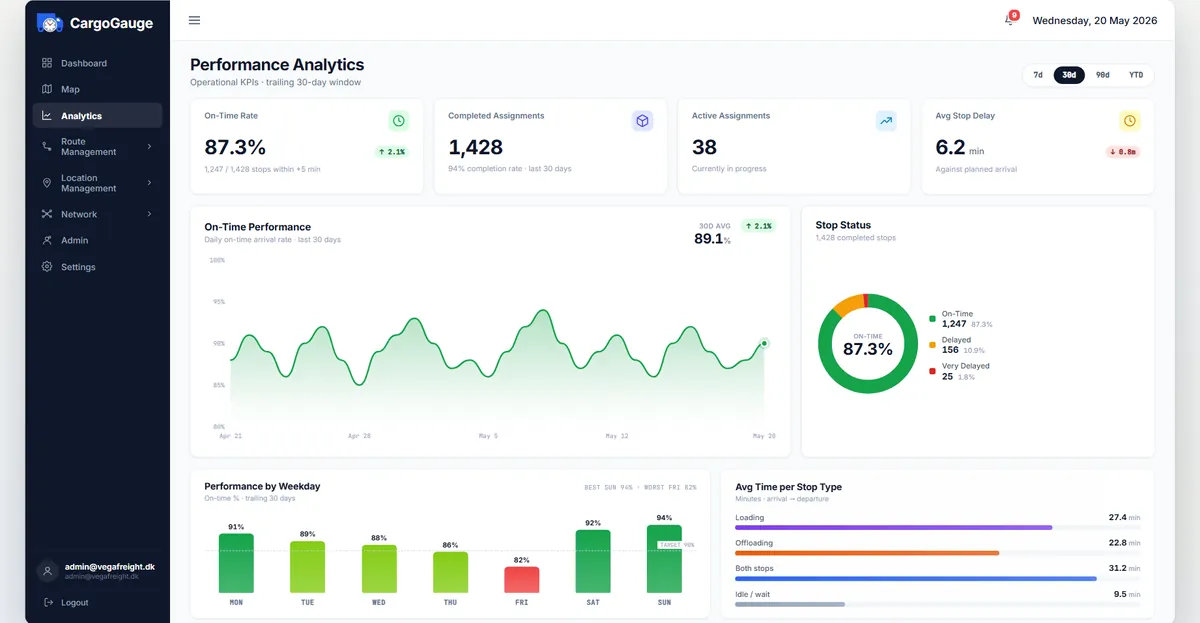
The analytics page. The figures are examples, not customer data.
Route planning for the vehicle type
Create a route from its stops and see the calculated route on the map. The vehicle type is part of the route, so the route only uses roads the vehicle is allowed to drive.
-
Name and vehicle type
The vehicle type on the route is used in the route calculation and in every assignment created from it.
-
Stops in order
Each stop has a type (pickup, delivery or return) and an expected time on site.
-
Assign to a subcontractor
A route can be run by your own fleet or by a subcontractor. This is set once and applies to every trip on the schedule.
-
Route preview
The preview shows the calculated route. A 40-tonne vehicle is kept off roads it is not allowed to use, which can mean a longer route and a correspondingly later arrival time.
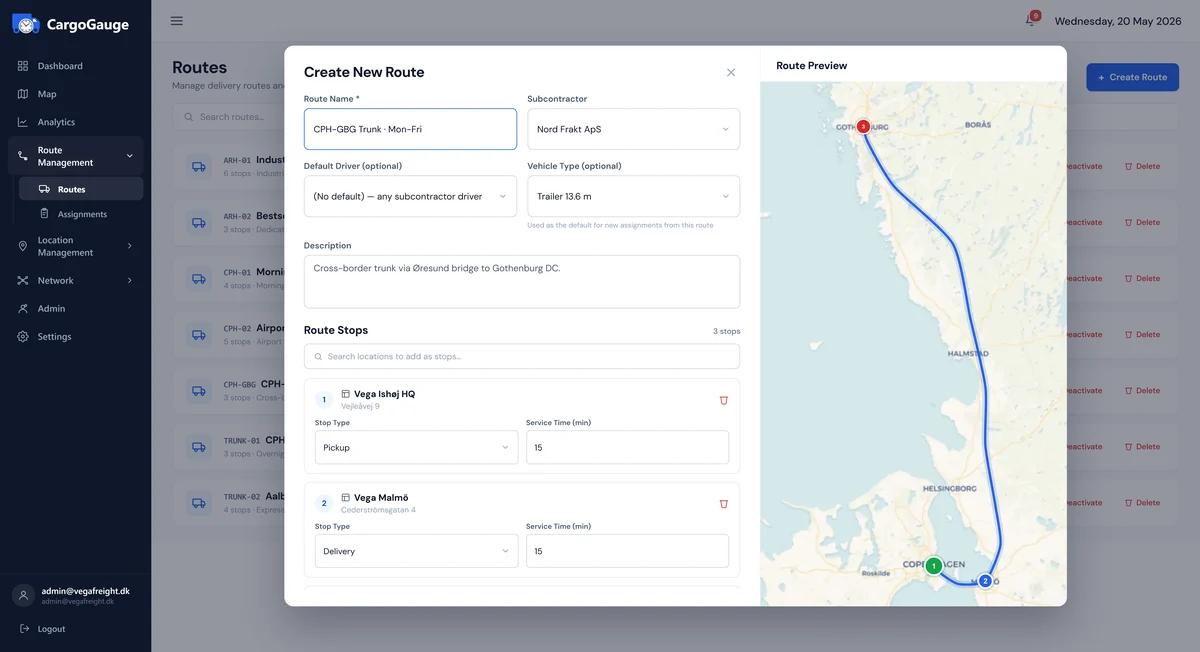
Building a route. The stops shown are examples.
Subcontractors get their own portal
A subcontractor logs in to their own account with their own dashboard, their own drivers, and only the assignments you have sent them.
-
Separate access
The subcontractor logs in to their own company account. They see their own assignments, drivers and documents, and nothing about your other subcontractors.
-
Set up once
A subcontractor is added to your network once. After that, assigning them a trip works the same way as assigning your own vehicles.
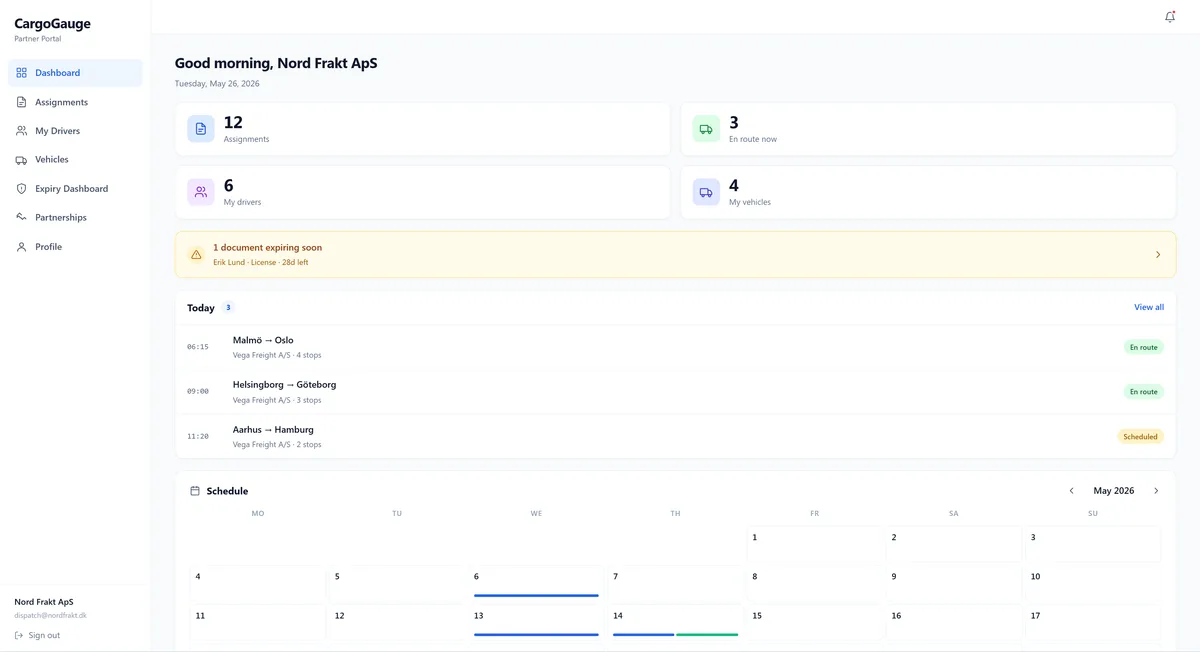
The partner portal. The companies and figures shown are examples.
The subcontractor assigns the driver
You dispatch the trip, and the subcontractor decides who drives it. The assignment appears in their list, and you can follow it the whole way.
-
The assignment
The subcontractor receives the route, the stops, the dates and the required vehicle type.
-
Their own driver
The subcontractor selects a driver from their own roster, so you do not maintain their staff list. The driver receives the trip in the same app your own drivers use.
-
Locked once started
Once the driver has started the trip, the assignment can no longer be edited.
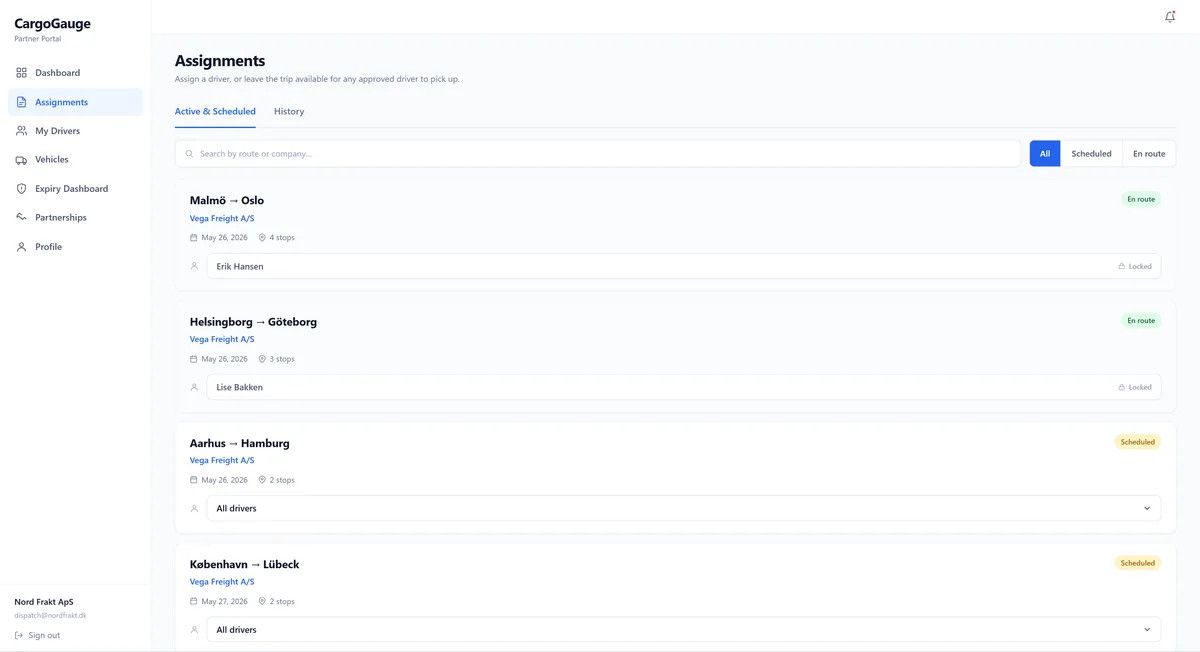
The partner portal. The hauliers and drivers shown are examples.
Drivers, vehicles and documents
Subcontractors maintain their own drivers, vehicles and documents in the portal, so the register is kept up to date by the people who know when it changes.
-
Drivers
Subcontractors add and remove their own drivers and link them to your company.
-
Vehicles
Registration number, make, vehicle class, emissions standard and fuel consumption, entered by the vehicle owner.
-
Document expiry
Licences, insurance and inspections have expiry dates, and the platform flags them before they expire.
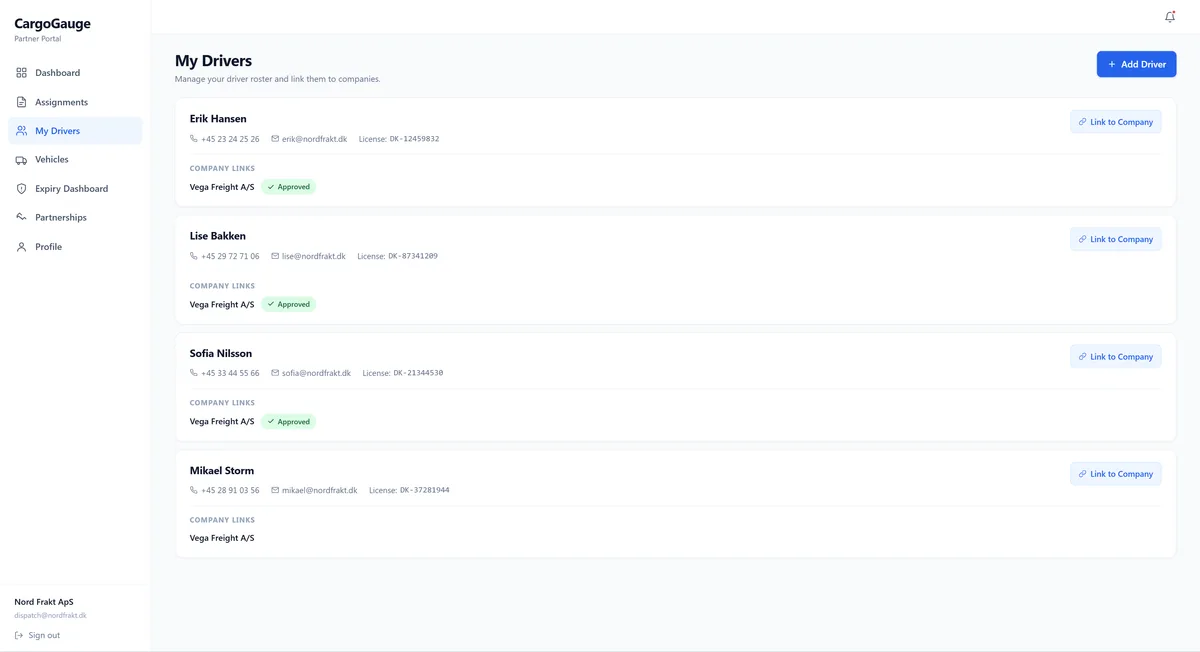
The partner portal. The drivers and vehicles shown are examples.
Today’s trips
The driver app is kept simple: today’s trips, the stops on each trip, and a single control to start.
-
Trip list
The driver sees their own trips with route name, vehicle, date and stops.
-
Trip details
Pickup, delivery and return with time windows, addresses and the assigned vehicle.
-
Swipe to start
The trip is started with a swipe, which prevents accidental starts. From that moment the trip is live on the operator’s map.
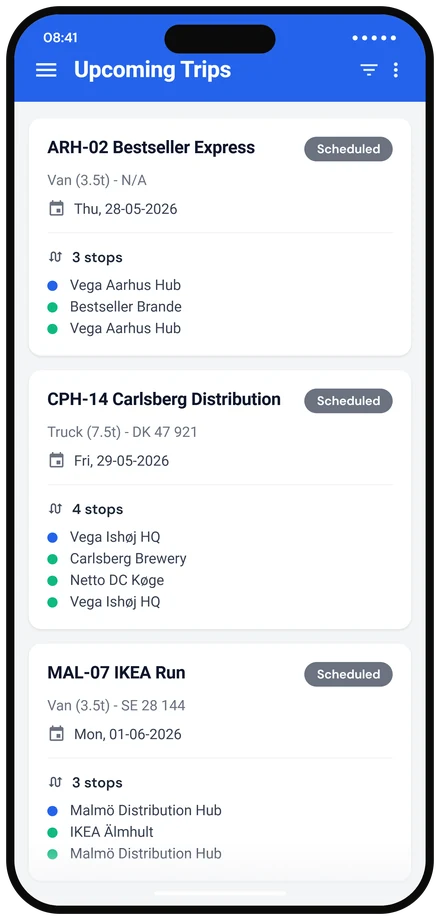
The driver app. Example stops and times.
One stop at a time
During the trip, the app shows the driver the next stop, while the operator follows each step.
-
En route
The address, the time window and the progress of the trip.
-
Arrival and loading
The driver confirms arrival, and the operator sees the actual arrival time compared to the planned time.
-
Next stop
Completed stops are marked as done, the next stop is shown, and the trip continues on the operator’s map.
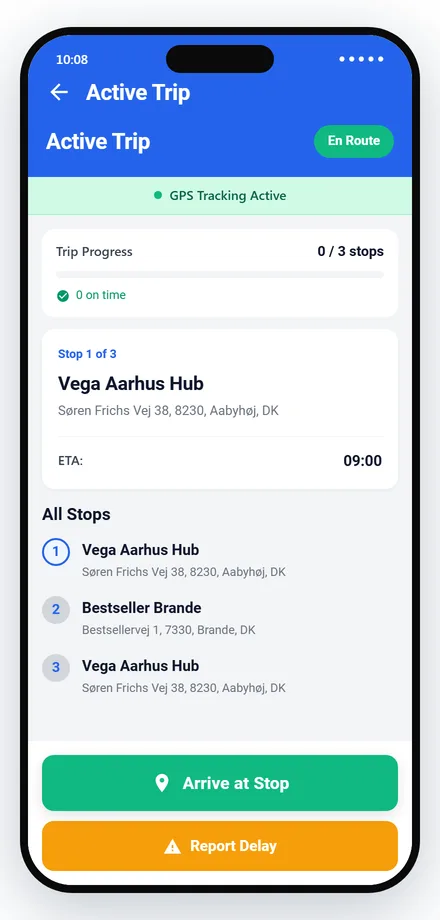
The driver app. Example stops and times.
Completing a trip
The driver confirms the last delivery, and that confirmation completes the assignment.
-
Swipe to complete
The trip is completed with a swipe, which prevents accidental completion.
-
Completed and documented
The driver receives a confirmation, and the assignment is marked as completed with the actual times.
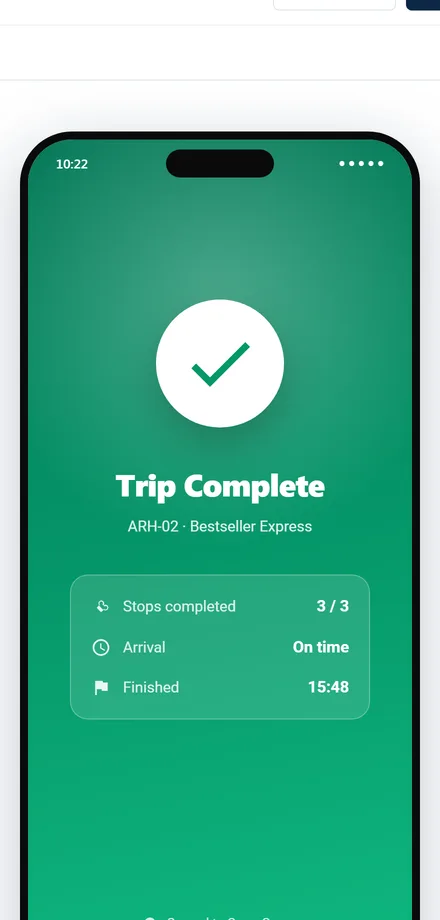
The driver app. Example stops and times.
Features in development
Four features that are not available yet.
- iOS. The driver app is available for Android. iOS support is in development.
- Dashboard languages. The driver app is available in 23 languages. The operator dashboard is currently in English.
- Self-service sign-up. Accounts are currently set up by us during onboarding.
- Public API. Integrations with TMS and ERP systems are handled individually.
See the platform with your own routes
Tell us about your operation, and we will show you the platform with your own types of routes.
- 30-minute demo
- Shown with your own types of routes
- No commitment